Monday, August 27, 2018

How QuickBooks Online Can Improve Your Company's Financial Health

QuickBooks Online is more than just an online bookkeeper. It can help improve your cash flow, your customer relationships, your inventory readiness, and your future.


If you’re already using QuickBooks Online, you know how much impact its bookkeeping abilities have had on your company’s accounting operations. You’re saving time, which in-turn saves money, and you’re reducing errors. When a customer or vendor calls with a question, or you yourself need to track down a critical detail to solve a problem, you’re able to find solutions quickly.


You may already have learned, though, that QuickBooks Online’s benefits include much more than simply getting the numbers right. When you take advantage of all it can offer, you’re likely to notice more far-reaching effects.


The Specifics


Let’s look at how QuickBooks Online accomplishes all of this. You can do much of it on your own, but we’re trained to help small businesses get the most out of QuickBooks Online. We can help you maximize the effectiveness of your accounting time so your company can:


Better balance between income and expenses.
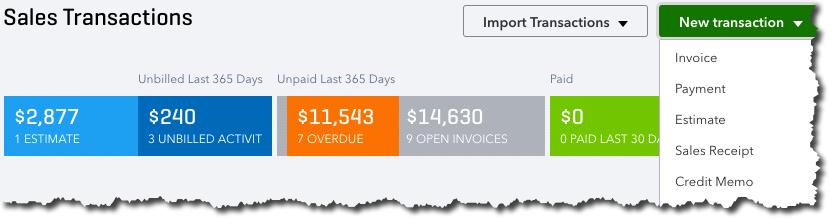


QuickBooks Online provides quick, real-time overviews of your sales status.


You can’t begin to improve your company’s cash flow until you understand where the financial bottlenecks are. QuickBooks Online provides that information for both income and expenses in a variety of ways. In the image above, you can see that there are seven past-due invoices. Click on the orange bar to see a list of them, and you can automatically send reminders. QuickBooks Online also automates the process of sending statements.


You can also run accounts receivable and accounts payable reports that will show where you stand with customers and vendors, like Open Invoices, Uninvoiced Time, Unpaid Bills, and Accounts Payable Aging Detail. If you determine that one of your consistent problems with cash flow is late customer payments, you can set up a merchant account through QuickBooks Online to support credit card payments and bank transfers.


More repeat business because of improved customer interaction.


Your customers are like gold. To build the best relationships possible with them, you need a clear, updated picture of their transactions, their payment details and history, and your interaction with them. QuickBooks Online provides templates for Customer Information records that provide all of that, along with their contact information and a real-time update of the status of their invoices and payments, estimates, time activities, etc. The latter is provided in the form of an interactive list with links to immediate actions you can take.


A more stable, profitable inventory of products.


If your business sells products, you know that you have to be smart about inventory levels. Stock too much and you have too much money tied up unnecessarily. Too little, and you’ll be turning customers away and possibly losing their future business. QuickBooks Online’s inventory-tracking tools help you achieve and maintain that balance, so you know both when and how much to reorder.


It’s easy to evaluate your inventory status very quickly in QuickBooks Online.


QuickBooks Online also offers multiple inventory reports, like Inventory Valuation Detail, Physical Inventory Worksheet, and Sales by Product/Service Detail.


Readiness for growth.


You may never want to acquire another company, or move into more spacious offices, or employ dozens of individuals. However, it’s not often that a company doesn’t want to be in a position to grow. And you never know when an opportunity will present itself that would require additional capital. Would you be ready?


If you’ve never applied for a business loan or tried to attract investors, you don’t know how much financial information you’ll need to provide, or in what format. There are very specific reports your potential lenders or investors will want to see, standard financial statements. QuickBooks Online includes templates for these, which include a Balance Sheet, Profit and Loss, and Statement of Cash Flows.


Like the reports we mentioned earlier, they’re easy to generate on the site, thanks to intelligent, customizable templates. Analyzing them, though, and making sure they’re ready to be seen by third-parties takes professional expertise. We can provide that for you. We can also help you better understand and use other elements of QuickBooks Online so that you’re taking advantage of all of its benefits. Contact us soon to set up an initial consultation.


Social media posts


Cash flow problems? Before you can solve them, you need to learn where the bottlenecks are. QuickBooks Online can help. Contact us to find out how.


Is your company ready to grow? You’ll need reports to show lenders and investors. QuickBooks Online can create them, and we can analyze them for you.


How well do you know your customers? Could you assemble a quick, thorough overview of their history with you? QuickBooks Online can, and we can show you how.
Are you dealing with product inventory problems due to overstocks or insufficient orders from vendors? QuickBooks Online can help.

Monday, August 20, 2018

Not Using QuickBooks Online? What You're Missing Out On


If you dread every minute of the time you spend on accounting, you should know how QuickBooks Online can change your outlook.


How long would it take you to determine:
  • What your total expenses for this quarter are?
  • Whether or not your business is profitable as of today?
  • How much you’ve sold every month this year?
  • Which invoices are overdue?


If you’re using QuickBooks Online, you can get answers to all those questions—and more—in the time it takes you to sign on to the website.


That’s not an exaggeration. The first thing QuickBooks Online displays is what’s called its Dashboard. This is the site’s home page, which contains an array of charts and account balances that provide a quick overview of your finances. Click on an element here—say, a checking account balance—and you’ll be able to drill down and see the details behind it (in this case, an online account register). Click on the Expense graph, and a transaction report opens.


Your First Hours with QBO


QuickBooks Online is not one-size-fits-all. Its setup tools help you customize it to meet your own company’s needs.


QuickBooks Online works like other online productivity applications you may have used. It uses toolbars and buttons for navigation, drop-down lists and blank fields for data entry, and clickable links to open new related screens to trigger actions. Which is to say, the site is easy to use once you understand its structure. We can walk you through the early steps that are required, which involves tasks like:
  • Using the provided setup tools to customize the site.
  • Connecting QuickBooks Online to your bank and credit card company websites so you can work with transactions.
  • Creating records for your customers, vendors, and the products and services you sell (you’ll be able to add new ones as your business grows).
  • Learning about QuickBooks Online’s pre-built reports.
  • Familiarizing yourself with the site’s workflow.
  • Making the transition from your current accounting system.


How You’ll Benefit


Once you’re comfortable using QuickBooks Online, you’ll discover what millions of small businesses have already learned, that the site helps you:


Get paid faster. You can sign up with a payment processor to accept credit cards and direct bank withdrawals, which can speed up your customers’ responses to invoices. You’ll also be able to accept payments when you’re out of the office on your mobile devices.


Minimize errors. Once you enter data, QuickBooks Online remembers it. No more duplicate data entry that can cause costly mistakes.


Find any detail in seconds. QuickBooks Online has powerful search tools that allow you to find what you’re looking for quickly.


Better service customers. Because your customer profiles include transaction histories, you’ll be able to deal with questions and problems quickly and accurately.


Bill time as well as invoice products. QuickBooks Online supports sales of time-based services with capable time-tracking tools.


Improve your customers’ and vendors’ perception of you. Your business associates will know that you’re using state-of-the-art technology by the forms you share and the customer service you provide.


Save money and time. It does take some time to make the transition to QuickBooks Online. But you’ll quickly make that up with the hours you’ll save on accounting tasks, and be able to concentrate on tasks that improve your bottom line.


Be prepared to grow. Because all of your financial data is organized and easily accessible, you’ll be able to quickly generate reports that help you plan for a more profitable future. Banks and investors will need some of these if you decide to seek financing.


Mobile Access


Although you may do the bulk of your accounting work on your desktop or laptop, you’ll have access to many of the site’s features on your smartphone. Your home page displays both an abbreviated version of your browser-based dashboard and a list of recent transactions. You can view, edit, and build new customer, vendor, and product or service records. Snap a photo of a receipt to document an expense and look up or create invoices, estimates, and sales receipts. Record payments, view critical reports, and add notes. Of course, your mobile data is always synchronized with the site itself.


QuickBooks Online lets you do much of your accounting work when you’re away from the office with its mobile app.


Happy to Help


QuickBooks Online was designed for small businesspeople, not accountants. But it includes features that are best used in conjunction with our consulting services, like advanced reports, payroll, and the Chart of Accounts. In fact, the site makes it easy for us to have access to your data so we have the ability to monitor and troubleshoot.


We’ve helped countless sole proprietors and small businesses move their accounting operations to QuickBooks Online, and we’ve seen the difference it’s made in their productivity as well as their attitude toward financial management. Contact us, and we’ll be happy to do the same for you.


Social media posts
Still doing your accounting manually? You’re spending unnecessary hours and experiencing needless frustration. Talk to us about QuickBooks Online.


Did you know you can do much of your accounting work and accept customer payments on your smartphone? Let us introduce you to QuickBooks Online.


Are you often away from the office? QuickBooks Online lets you handle accounting tasks from anywhere there’s an internet connection. We can tell you how.


Does your manual accounting system make it hard to keep track of customers and inventory? QuickBooks Online can organize and manage both. Contact us.

Monday, July 2, 2018


Don't Have a Budget? QuickBooks Online Can Help


The hardest part of creating a budget is getting started. QuickBooks Online provides tools that can jump-start the process.


You know you should have a budget. You’re aware that it can help you stay on track with your company’s income and expenses throughout the year. Maybe you’ve even tried to make one before, but you got discouraged by the mechanics or by the difficulty of estimating money in and out for the next 12 months.


June may not be the beginning of your fiscal year, but that doesn’t mean you can’t make a serious effort to start building a budget that can help you rein in expenses and set revenue goals.


Here’s a look at QuickBooks Online’s budgeting features.


Creating the Framework


Before you begin, you’ll want to make sure that your fiscal year is set correctly in QuickBooks Online. Click the gear icon in the upper right, then click Your Company | Account and Settings | Advanced. If the First month of fiscal year isn’t correct, click the pencil icon over to the right and change it. Then click Save and exit out of this window.


Click the gear icon again and select Budgeting, then click Add budget in the upper right.


QuickBooks Online asks you the questions that need to be answered before you start filling in your budget grid.


The first thing you’ll do is give your budget a descriptive name by entering it in the Name field. Next, open the drop-down list under Fiscal year and select the correct 12-month period. You can create your budget in one of three intervals: Monthly, Quarterly, or Yearly. If you want to populate your budget with numbers from this year or last, make that selection in the Pre-fill data? field.


There’s one more option at the top of the Budgets Grid screen that’s not shown in the image above. You can Subdivide by Customer, Class, or Location. This can be useful if you want to view budget data specific to a subset of entries in each of those categories. You could, for example, choose three customers and view only their numbers in the grid individually, one at a time.


Providing Your Numbers


Once you’re satisfied with the selections you’ve made, click Create Budget in the lower right. The screen will refresh and display a grid that you can edit.


Let’s say you’re working on a budget for the second half of 2018. QuickBooks Online brought in your numbers for January-May. You see that the numbers don’t vary much from month to month on one specific line item, so you’re going to assume that they will continue to be true (unless you know something that will affect it after May). You could enter a rough average of the first five months in the JUN field.


Hover your cursor over the arrow to the side of that field, and this sentence appears in a small bubble: Click to copy the value across on the row. QuickBooks Online will then enter that number in the JUL through DEC fields.


QuickBooks Online can save you some time as you enter data in your budget grid fields.


When you’re done entering data in all of the fields relevant to your business, click Save in the lower right and close the window. Your budget will now show up in the list.


Tip: If you have multiple blank rows and don’t want them to be displayed, click the gear icon in the upper right corner of your budget page. Click in the box in front of Hide blank rows to create a checkmark.


The Hard Part


QuickBooks Online simplifies the mechanics of creating a budget, but it’s up to you to supply the numbers. There’s lots of common-sense advice that experts offer for this process, like:
  • Remember seasonal upswings and downswings.
  • Make your goals as realistic as possible. You might want to create separate budgets for “needs” and “wants.”
  • Track your expenses carefully for a period of time so you can estimate more confidently.
  • Create reports regularly that compare your budget vs actuals.


QuickBooks Online can help you with that last piece of advice; it offers a report called Budget vs. Actuals. You’ll find it in the Business Overview group.


We can help, too. Once we understand a little more about your business structure and goals, we can take a look at your income and expense history and make some personalized recommendations. Connect with us soon, and we can start you on the path to a more focused financial future.
Social media posts


It may be halfway through the year, but you can still work on budgeting. QuickBooks Online can help; we can, too.


Thinking about creating a budget for 2019? Start now by tracking income and expenses carefully; you can use this year’s data to project next year’s numbers.


One of QuickBooks Online’s most useful reports is Budget vs. Actuals. Don’t have a budget? Let us walk you through creating one.


Here’s a budgeting tip: Create one budget for “wants” and another for “needs.”  Let QuickBooks Online walk you through their creation.


Wednesday, June 20, 2018

All About Sales Receipts in QuickBooks

All About Sales Receipts in QuickBooks


Documenting every sale carefully helps ensure that your financial records and reports will be accurate. The sales receipt is the right tool for this in specific situations.


You know how important it is to obtain receipts for the expenses you and your employees incur. You need to record them, analyze their impact on your cash flow, and claim some of them on your income taxes.


Your customers, too, expect to receive forms documenting purchases they’ve made from you. When they pay you immediately for goods or services, you’ll give them a sales receipt, rather than invoicing them for future remittance. Not only will your customers have a record of the transaction – you will, too.


QuickBooks supports the creation and tracking of sales receipts. It manages the mechanics of this important task incredibly well. It eliminates the need to enter receipt data twice, once on a paper copy for your customer and again in your accounting system. This QuickBooks feature not only minimizes errors, but saves time and lessens the possibility of disputes down the road.


A Simple Form


Here’s an example of a situation that illustrates the importance of really learning about and understanding QuickBooks before you start entering live data. Say you got a check from a customer on the spot for a house painting job you completed. When you look at QuickBooks’ home page, which icon do you click?


You might be tempted to click Receive Payments, since that’s exactly what you’re doing. But that screen is reserved for revenue that comes in to satisfy outstanding invoices and unpaid items on billing statements. Instead, you’d click Create Sales Receipts to open the Enter Sales Receipts window. Here’s a partial view of what you’d see:


When a customer pays you immediately for goods or services, you need to open and complete the Enter Sales Receipts window.


If you’ve already entered your customer and item/service records in QuickBooks, you can record your sale very quickly here. Even if you haven’t, or if you need to create a new record on the fly, you can select <Add New> when you open the drop-down option lists for the Customer:Job and Item fields.


Warning: Do you need to track inventory levels for products you sell? Have you created thorough records for these items? There is information that QuickBooks needs to help ensure that you don’t run out of stock or keep too much on hand. Let us walk you through the software’s inventory-management tools so you can take advantage of all the benefits they offer.


Once you’ve selected the appropriate customer, Class (if you use this feature), and Template (Here again, do you understand that you can either use the default sales receipt form provided by QuickBooks or customize it? We can help here), make sure that the Date and Sale No. are correct.


Next, click on the icon representing the transaction’s payment method, choosing from Cash, Check, Credit Card, or eCheck. Click the More button if your method isn’t listed there. Here, you can add new options by selecting Add New Payment Method. A small window will open allowing this. If you want to modify this list further by, for example. editing and deleting the default methods, clear and close the current sales receipt, open the Lists menu, and select Customer & Vendor Profile Lists | Payment Method List. This window will open:


Click the down arrow in the Payment Method field near the bottom of this window to see your modification options.


Once you’ve chosen the desired Payment Method (and entered a check number if necessary), you’ll complete the rest of the sales receipt much like you would an invoice, by selecting the correct products or services, the quantity you’re selling, and the transaction’s tax status. QuickBooks will fill in the rest if you’ve created complete item records.


When you’re done, save the sales receipt. Information about the transaction will be available in standard places like the Customer Information screens and various reports.


Whether your revenue comes instantly (documented by a sales receipt) or as longer-term payment on an invoice, your company’s income is just one element of the cash flow equation. Are you able to create and interpret the reports that can help you understand these complex calculations, like Cash Flow Forecast and Profit & Loss? You probably run some of QuickBooks’ more basic sales reports regularly, but consider bringing us in to do the deep analysis needed to make better business decisions.
Social media posts


Did you know you can modify the list of payment methods available in QuickBooks? Click Lists | Customer & Vendor Profile Lists | Payment Method List.


There are two primary ways to record income from customers in QuickBooks: Receive Payments and Create Sales Receipts. Do you know when each should be used?


Analyzing your company’s cash flow is more complicated than simply comparing income to expenses. We can help you understand how this works, and why you need to know.


QuickBooks comes with a template for creating sales receipts, but you have the ability to modify it if needed. Ask us about the software’s customization tools.