Wednesday, February 20, 2019

How Do You Track Jobs in QuickBooks? Part 1

If your business divides some of its work into specific jobs and you’re not tracking them individually, you’re missing out on valuable insight.


Job-costing is not just for contractors. That’s probably the most common understanding of this concept in QuickBooks, but you can also use the software’s jobs tools to track income and expenses for any related group of items and/or services.


Think of them as projects. If you’re an expert in business promotions, for example, you probably have multiple projects going on simultaneously that consist of materials you might need to order for your client (like special paper) and the actual work you do (design, content-creation, etc.). You could also have to track expenses like mileage, and you may price your services by the hour.


QuickBooks can handle all of this. If you’re conscientious about documenting all of the pieces that go into every job, you’ll be able to run reports that show you how much you spent and took in on each. This information can help you better price your services and manage your time to maximize profitability.


Many Elements


In this first part of a two-column series, we’re going to explore the basic elements that go into job-tracking. Keep in mind that there are many different ways to work with jobs. How you choose to do it will depend on the structure of your business. We can help you devise a plan.


We’ll look at a simple example here. The first step involves setting up a job for an existing client. Even if you think you’re only going to be doing one project for them, you can still set it up as a job so you can assign all related income and expenses to it. This will make it much easier if you get additional work from the customer down the line – and if you have to bill the customer for something that’s not related to a specific project.


To create a job, open the Customers menu and select Customer Center. Make sure the Customers & Jobs tab is highlighted. Select the customer by clicking on it. Right-click the name and select Add Job from the drop-down list. When the New Job window opens, click the Job Info tab.
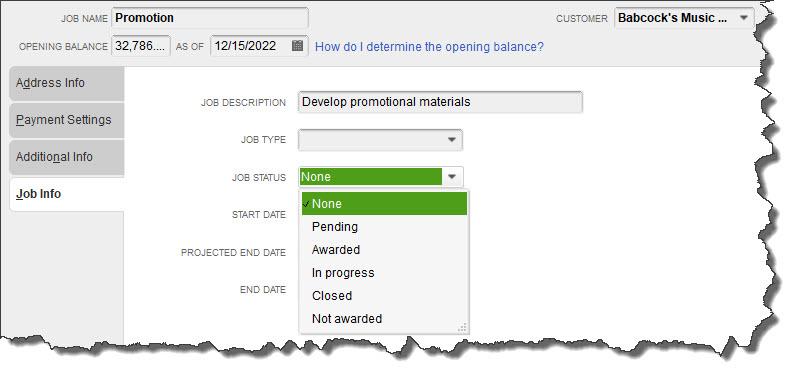

You can track your Jobs by keeping their status current in the New Job window.


Fill in the Job Name field. In this example, we’ve selected a name that’s broad enough that we’ll eventually be able to break down into specific tasks. If your customer has an outstanding balance as of the current date, that amount will appear in the Opening Balance field.
Enter a Job Description. The Job Type field is optional, but creating these classifications can help with advanced reports that gauge profitability. Consult with us if you want to explore these.


Open the Job Status list and select the correct one, then choose a Start Date and Projected End Date. You’ll document the End Date when you’re finished. Click OK.


Creating Item Records


You may already know that if you buy and/or sell products and/or services, you have to set up individual records for each one so you can include them on sales and purchase forms. You’ll need these to record income and expenses related to your Promotion job. If you’re new to QuickBooks, here’s how it works.


Open the Lists menu and select Item List. In the window that opens, click the arrow next to Item in the lower left corner and select New. A window like this will open:
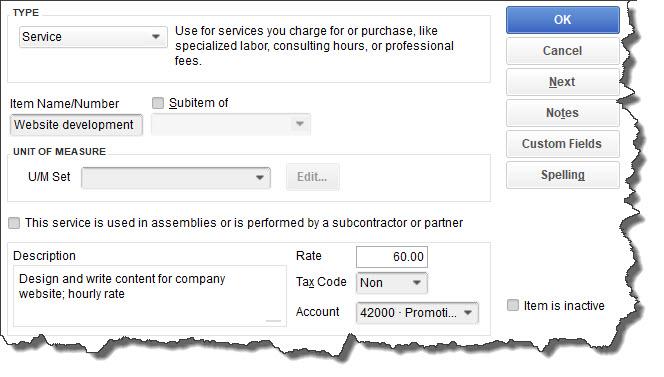

The New Item window


The Item Type list will drop down. Select Service. In the example above, you’re creating a record for a service you sell: Website Development. Enter that in the Item Name/Number field. Ignore the U/M Set field; this is not available in QuickBooks Pro or Premier.


Enter a Description and your hourly (or project) Rate. Choose the correct Tax Code status and select the Account. When you’re done, click OK.


Warning: You may not have an Account in your Chart of Accounts that fits the specialized income and expenses you want to track. Let us help you set one up.


You’ll repeat this process for other types of promotional work you do (making flyers and brochures, designing and ordering branded products, general content creation, etc.).


Think It Through First


Before you create your first job, spend time envisioning how you want it structured. Remember that every invoice or timed activity or other income or expense you enter will only be assigned to one Customer:Job, but you can include as many Items as you want. As we said, we’re happy to help you think this through and go through setup with you.


Next month, we’ll demonstrate how the records you’ve created can be used.


Social media posts
Some small business people are intimidated by QuickBooks’ jobs tools. Let us show you how to work with them.


QuickBooks’ jobs feature isn’t just for contractors. Did you know you can use it to track related income and expenses for any type of project?


If you’re going to approach QuickBooks’ jobs tools, be sure to carefully consider how your work should be structured. We can help.

Do you need to track income and expenses for a specific set of tasks or products? QuickBooks’ jobs feature can help you do so.

Wednesday, February 6, 2019

How Does QuickBooks Online Handle Mobile Expenses?

If you purchase several items and services away from the office, QuickBooks Online can help you record them while you’re out and about.


QuickBooks Online’s mobile app, available at the Apple App Store and Google Play, can do many of the same tasks that it performs on your office desktop. You can, for example:


  • Check account balances.
  • Add and edit estimates, invoices, and sales receipts.
  • Add and edit customers, vendors, products, and services.
  • Record invoice payments.


One of the most common uses of the app, though, is the recording of expenses. Rather than coming home from a trip with your briefcase stuffed full of receipts and notes about purchases you made, you can document them on the road using your mobile device. When you get back to the office and log on to QuickBooks Online, they’ll all be there.


How It Works


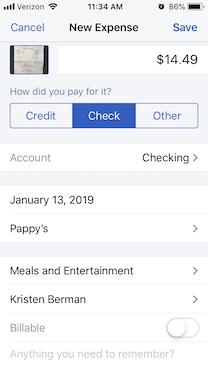
You can snap a photo of a receipt with your smartphone and attach it to an expense you record in QuickBooks Online’s mobile app.

Friday, January 18, 2019

How to Apply Finance Charges in QuickBooks

You may hate to have to do it, but assessing finance charges for late payments may improve your overall cash flow.
There are a myriad of ways to bring in customer payments faster and improve your cash flow. You can:
  • Get a merchant account and let customers pay you electronically
  • Offer a discount for early payments
  • Shorten the payment due cycle (21 days instead of 30 days, for example)
  • Be more aggressive about collections
QuickBooks can help you take all of these steps. It also offers a fifth option: assess finance charges for tardy remittances.
Maybe you don’t want to do this because it seems like a less-than-friendly way to treat customers – especially valued ones. But you’re not in the business of lending money, which is what you’re doing when you continue to let your accounts receivable slide. So, here’s how to do add finance charges to your payment policies.
Multiple Issues Involved
Before you can start adding finance charges to tardy payments, you’ll need to let QuickBooks know how you want them handled. Open the Edit menu and select Preferences. Click the Finance Charge tab in the left vertical pane, then the Company Preferences tab in the window that opens. You’ll see something like this:

You’ll need to decide on your QuickBooks Finance Charge settings before you can begin to apply these late fees.
What Annual Interest Rate will you charge? Will there be a Minimum Finance Charge? Do you want to offer a Grace Period? If you’ve never worked with finance charges before, you might be at a loss as to how you should answer these questions. We can talk it through with you if you’d like, and make sure you’re selecting the correct Finance Charge Account. In our example, QuickBooks defaulted to 70100 – Other Income, which may be the best option for you.
The next question may require some research. Some jurisdictions don’t allow you to Assess finance charges on overdue finance charges; you’ll need to find out. If there’s any doubt, make sure that the box in front of that option isn’t checked.
QuickBooks also needs to know on what date it should start calculating finance charges: on the due date or invoice/billed date. Finally, check the box in front of Mark finance charge invoices “To be printed.” QuickBooks doesn’t include finance charges on invoices themselves; it bills them on separate invoices. Check this box if you want the software to print all of them as a batch.
When you’re done here, click OK.
Applying the Charges

By selecting an Assessment Date, you’re telling QuickBooks how many late days should be included in its finance charge calculations.

When you’re ready, open the Customers menu and select Assess Finance Charges. A window like the one in the image above will open.
QuickBooks, of course, performs all of the required calculations in the background. But it must first know what specific date you plan to actually assess the charges so that it can determine the number of late days that should be included. This may not be the current date, so be sure the Assessment Date is correct before proceeding.
All you have to do here is make sure there’s a check mark in front of every finance charge that should be invoiced (they’ll probably already be there, but you should verify this). If you send statements, clear the box in front of Mark Invoices “To be printed.” The finance charges will appear on the next statement.
When you’re satisfied, click Assess Charges.
Dispatching the Charges
Your finance charges have now been recorded in QuickBooks as individual invoices. When it’s time to print, open the File menu and select Print Forms | Invoices. You’ll see your numbered finance charge invoices displayed like this:

You can see your finance charge invoices when you go to print them.

(Of course, if you email invoices, you’d click on File | Send Forms.)
It’s a good idea to notify your customers before you start assessing finance charges. This will give them a chance to catch up, and no one will be surprised to see the extra invoices.
QuickBooks does the hefty lifting as far as calculations are concerned, but it’s very important that you set your finance charges up correctly. Customers will be annoyed by mistakes. And it’s much easier for us to help you get this tool set up right from the start than to have to go in and untangle errors. Let us know if you plan to start assessing finance charges, and we’ll help make it work for you.

Social media posts
There are numerous ways to encourage prompt payments from your customers. Assessing finance charges is one of them. QuickBooks can help do this.
Positive cash flow is dependent in part on how quickly your customers pay their invoices. We can help you set up finance charges to encourage this.
QuickBooks dispatches finance charges by creating additional invoices, which can be confusing. Let us help you understand this process.

Do you know what is a reasonable finance charge to assess customers who pay their invoices late? We can help you make such decisions.

Friday, January 4, 2019

Resolve to Do These 3 Things in QuickBooks Online This Month

‘Tis the season for making resolutions and setting goals. Try exploring these three areas to dig deeper into QuickBooks Online.
By now, many New Year’s resolutions have already been made – and broken. Though they’re usually created with the best of intentions, they’re often just too ambitious to be realistic.
For example, you might decide to learn more about QuickBooks Online and keep up with your accounting chores more conscientiously in 2019. That’s hard to quantify. How will you know if you achieved that goal?
Instead, why not pick three (or more) specific areas and focus on them this month? We’ll get the ball rolling for you by making some suggestions.
Explore the QuickBooks Online mobile app:
Yes, QuickBooks Online itself is already mobile; you can access it from any computer that has an internet connection and browser. But you probably don’t always lug a laptop around when you’re away from the office, and you’re sometimes at locations where using it wouldn’t be practical. But you can always pull out your smartphone and fire up the QuickBooks online app, available for both iOS and Android.


No matter how small your smartphone (this image was captured on an iPhone SE), you can still do your accounting tasks using QuickBooks Online’s app.


QuickBooks Online’s app replicates a surprising percentage of the features found on the browser-based version. You can create, view, and edit invoices, estimates, and sales receipts for example, as well as see abbreviated customer and vendor records. Your product and service records are available there, including tools for recording expenses on the road.
Create a budget for one month:
Budgets are intimidating. That’s one reason why some small businesses don’t create them. So instead of trying to estimate what your income and expenses will be for an entire fiscal year, just build a budget for one month. In QuickBooks Online, you’d click the gear icon in the upper right, then select Budgeting. Click Add budget in the upper right to open the New Budget window.
Give it a name, like “February Budget,” and select FY2019. Leave the Interval at Monthly, and open the Pre-fill data? menu to click on Actual data – 2018 (if you have data from last year). Then click Create Budget in the lower right corner. Look at last year’s February numbers and estimate how they might change in 2019. Replace the old numbers with your new ones.


Creating a framework for a budget in QuickBooks Online is easy.


We’re suggesting you try it for just one month, so you get a feel for how this tool works. And that experiment will probably leave you with some questions. We can help you go further and complete an annual budget.
Customize your sales forms:
Every piece of paper and email you send to your customers contributes to their impression of you. Are you presenting an attractive, consistent image of your business to them? QuickBooks Online can help with this. It offers simple (for the most part) tools that allow you to modify the boilerplate forms offered on the site – without being an experienced graphic designer.
Start by clicking on the gear icon in the upper right and selecting Your Company | Custom Form Styles. Unless you’ve done some work in this area before, the screen that opens will have just one listed entry: your Master form, the one that comes standard in QuickBooks Online. To see what you can do, click Edit at the end of that line. Your four options are:
  • Design. This section contains links to modifications you can make to your sales forms’ visuals. You can, for example, add a logo or color and change the default fonts.


Want to change your logo or other elements of your sales forms? QuickBooks Online has the tools.


  • Content. Do you want to add or remove the standard columns (Date, Quantity, etc.) displayed on your invoices? You can do so by checking and unchecking boxes.
  • Emails. QuickBooks Online sends email messages with forms; you can edit them here.
  • Payments. This is a reminder that QuickBooks Online supports online payments, which can help you get paid faster.
There’s more you can do to make your sales forms look professional and polished. We can help you with these tools – and any others you want to explore to expand your use of QuickBooks Online. It’s a new year, and who knows what might come your way over the next 12 months? Contact us if you want to prepare for the new accounting challenges that 2019 might present.


Social media posts
Did you resolve to grow your understanding of QuickBooks Online in 2019? We can help you explore new features.
Go mobile in 2019: Download the QuickBooks Online app for your smartphone. You’d be surprised at how much it can do for you while you’re on the go.
How are things going with your 2019 budget? If you don’t have one yet, let us show you how QuickBooks Online simplifies this critical task.

QuickBooks Online’s sales forms (like invoices) may work fine for you. Do you know, though, how they can be customized to fit the image of your business? Ask us.

Tuesday, December 11, 2018

Getting Started with Accounts in QuickBooks Online, Part 2

We covered a lot of ground last month, but there are still some things to know about working with transactions you import from your banks.
Last month, we went over the basics of managing financial transactions once you’ve downloaded them into QuickBooks Online. We walked you through the mechanics of connecting to banks and credit card companies online and described the process of reviewing imported transactions, exploring concepts like:
  • Categorizing them, and marking them as billable
  • Adding them to an account register; matching them to related transactions; or transferring them to another account
  • Using Batch actions to process related groups

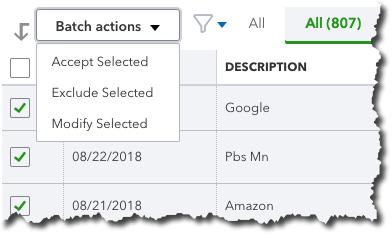
We explored QuickBooks Online’s Banking features last month, including the site’s ability to work with related transactions as groups.


This month, we’ll look at the process of setting up rules to automatically classify transactions as they come in from your banks. We’ll also provide a brief overview of the Chart of Accounts.
Bank Rules
We’ve already discussed QuickBooks Online’s ability to guess how transactions should be categorized (it’s not always right, but you can change incorrect ones). It also allows you to memorize transactions that recur on a regular basis; this also saves time and improves accuracy. There’s another way the site also uses automation to help minimize keystrokes: Bank Rules. Based on your input, it will scan incoming items and classify them, so you don’t have to. This can be very helpful when you regularly import transactions that share specific attributes.
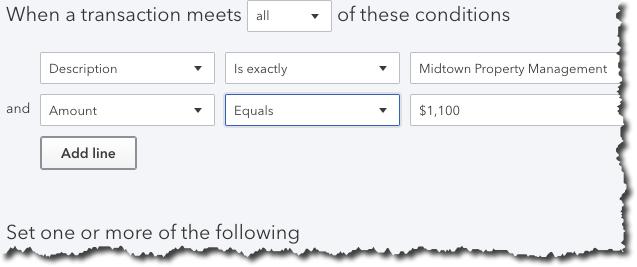
Let’s look at how this works. Click Banking in the navigation toolbar, then click Bank Rules. Once you’ve created your own rule(s), they’ll appear in a grid on this screen. For now, click New rule in the upper right corner. Basically, you’re going to tell QuickBooks Online that when specific conditions are met, as you can see in the example below, it should take the specified action(s): assign a Transaction type, Payee, and/or Category. You can also have the transaction automatically added to your books.


You can create Bank Rules in QuickBooks Online that will automatically assign a Transaction type, Payee, and Category to imported items that meet specific conditions.


We suggest you meet with us if you’re going to take on this task. If your business processes a lot of transactions, Bank Rules can be incredibly helpful. But set them up incorrectly, and it could take many hours to untangle the errors.
Account Registers, Chart of Accounts
In this column and the last, we’ve been working with transactions as they come into QuickBooks Online directly from your financial institutions, before they appear in your account registers. When you clicked Add after you looked at—and perhaps modified—a transaction listed under For Review on the Banking page, you sent it to that account’s register.
Notice that the site’s registers look similar to their paper counterparts; you may remember recording checks and deposits in the back of your checkbook, if you’ve been in business long enough. There are two ways to see them in QuickBooks Online. When you’re on the Banking page, look over to your right. You’ll see a link labeled Go to Register. Click it, and you’ll be taken to that page for the account that’s currently active.
You can also open your account registers from the Chart of Accounts. We don’t talk much about this element of financial management because it’s not something you should be modifying. Nevertheless, it’s the heart of your accounting system. It consists of a comprehensive list of your company’s accounts, divided into assets, liabilities, income, expenses, and equity (along with subaccounts). Transactions are assigned to the appropriate account and recorded in the General Ledger, which is another element of accounting that we don’t discuss because you don’t have to deal with it in QuickBooks Online.


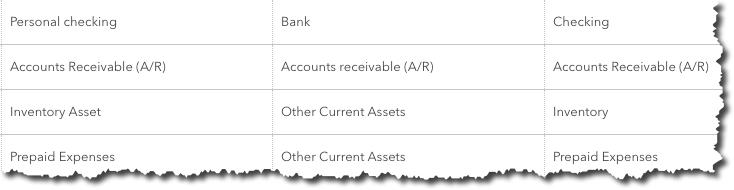
You can view your company’s Chart of Accounts in QuickBooks Online, but we recommend you don’t modify it.


Click on the Accounting tab in the navigation toolbar, then Chart of Accounts. You’ll see your individual bank accounts listed here, along with a View Register link.
A Critical Concept
Again, you won’t have to deal with the Chart of Accounts, but it’s very important that you understand how to manage downloaded transactions as you move them into your bank accounts in QuickBooks Online. Mistakes here can trigger errors in reports and taxes, as well as create general confusion. We’d be happy to get you on the right path with this critical function.


Social media posts
QuickBooks Online guesses at how imported transactions should be categorized. You should be checking these carefully and changing incorrect ones.
If your company’s transaction volume is especially high, you may want to create Bank Rules to help process them quickly. Ask us how to do this successfully.
Make a New Year’s resolution to get a better understanding of how accounts work in QuickBooks Online. Book a session with us to explore this.

Bank registers in QuickBooks Online resemble paper checkbook registers, but they don’t work the same way. We can help you understand the differences.