Wednesday, June 24, 2020

Make QuickBooks Yours: Customize the Desktop

Make QuickBooks work faster for you by changing a few settings.


Whether your business has been locked down because of the pandemic, or you’re scrambling to hold things together with fewer employees or diminishing sales, you’re probably leaning on QuickBooks more than ever. You may be watching dwindling inventory items closely or monitoring your daily cash flow or trying to collect on invoices that aren’t being paid because your customers are short on money.


QuickBooks can help with all these accounting tasks. But you certainly don’t want to waste time now just dealing with the software’s mechanics. 


As always, we’re available to help as you deal with the toll that COVID-19 is taking on your company. We’d also like to suggest that you spend a little time customizing QuickBooks. Streamlining its operations will take some of the unnecessary frustration out of your work life.


Getting Around Quickly


QuickBooks tries to accommodate different work styles and preferences by providing multiple navigation methods. These are:
  • The old, standard Windows menus. 
  • The home page’s icons. 
  • The Icon Bar that appears in the left vertical pane by default (you change its position by opening the View menu).


If you’re going to use the Icon Bar, we recommend that you set it up to make your most often-used tools prominent. Right-click in the toolbar and click on Customize Shortcuts to open the Customize Icon Bar window. In the upper left corner, you’ll see a list of your icons as they’re currently arranged. You can rearrange them by grabbing the small diamonds to their left with your mouse and dragging them to their new positions. You can change their labels by clicking Edit, or Delete them.

A screenshot of a cell phone

Description automatically generated
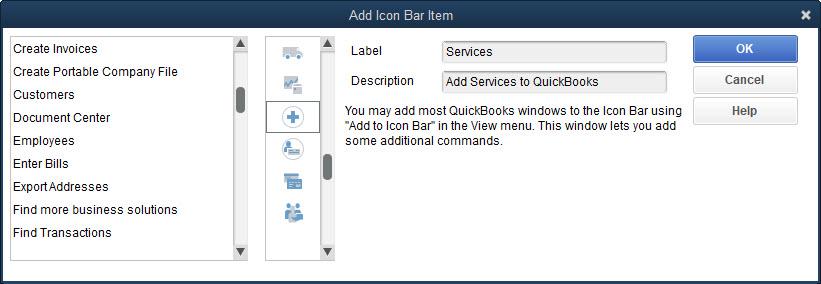
You can add almost any window in QuickBooks to your fast-access Icon Bar.


You’re not limited to the items in the list. Click Add, and the Add Icon Bar Item opens, as pictured above. Click on any of the ones you want to include in the Icon Bar, then click OK.  QuickBooks allows you to add almost any screen to your Icon Bar. Navigate to the window you want to add, then open the View menu and select Add…to Icon Bar. If you never use the Icon Bar, you can collapse it by clicking the small arrow to the right of the Search box at the top of the pane. You can also close the home page by clicking the lower of the two small X’s in the upper right.


Tile Your Windows
If you regularly work with the same handful of screens, there’s a faster way to access them. Open them all, then open the Window menu and select Tile Vertically. All the windows will be displayed on the same screen, arranged vertically. If there are enough of them, they will overlap. To activate one, just click on it. You can open it to full screen by clicking the small rectangle in the upper right and return to your vertical arrangement by clicking the double rectangle in the upper right.


If you’d prefer, you can Tile Horizontally. Or, you can click Cascade to display them stacked on top of each other with only each window’s title label showing, as shown below. If you want to go back to a blank screen and start over, click Window | Close All. The Window menu also displays a list of open windows that can be used for navigation.


A picture containing screenshot

Description automatically generated
If you click Window | Cascade with multiple windows open, QuickBooks will stack them, with only the bottom screen showing. Click on a title label to open a different window.


The Desktop View


There are other ways you can make QuickBooks work the way you want it to. Open the Edit menu and select Preferences, then Desktop View. Click on the My Preferences tab if it’s not already highlighted. There are several preferences here. Look under the Desktop heading. You can have QuickBooks open to the configuration of windows you want. Your options are:


  • Save [the windows that are already open] when closing company.
  • Save current desktop (a specific set of windows).
  • Don’t save the desktop (always open to just the home page).


Click the Company Preferences tab to add or remove icons from the home page. This is also where you turn features on and off.


We’re Still Here


All these suggestions may seem minor to you. But they will save time. More important, they will give you a better sense of control over the hours you spend on accounting tasks. And with so many things out of our control right now, creating a software environment that is tailored to your workflow can benefit you.


We know that you may be struggling right now to maintain your financial health, as well as your physical health. More than ever, we hope you’ll contact us if you have a QuickBooks or general accounting problem that we could solve. We’ll be happy to do what we can to help you through during this very challenging period. 


SOCIAL MEDIA POSTS


Did you know that you can tailor your QuickBooks desktop view to accommodate your personal workflow? During times like these with so many things out of our control, creating a software environment that is tailored to your workflow can benefit you. Find out how here.


It’s easier to get around in QuickBooks if you customize its navigation tools. We can help you set up a desktop that saves time and reduces confusion, which is especially helpful in today’s times.


Did you know if you consistently use the same set of windows in QuickBooks, you can save that combination and view it in multiple ways, saving you time and giving you more control? Here is how.

It’s more important than ever to keep your accounting records organized and updated. Here are a few ways QuickBooks can help by accommodating your personal workflow. And remember, we’re still here to help during this challenging period.

Wednesday, June 10, 2020

Tracking Mileage in QuickBooks Online

If you’re having to drive for work during the pandemic, let QuickBooks Online make sure you’re recording all of your deductible mileage.


Many states are starting to open for business again. If yours is one of them and this is affecting you, we hope you’re taking steps to stay healthy. We also hope that you’ve been keeping up with your changing finances by using QuickBooks Online. 


As many will resume back to the day to day of business, if any part of your work involves driving business miles that can be deducted on your income taxes, you’ll want to know about a relatively new QuickBooks Online feature: mileage tracking. You can NOW record trips either manually or automatically, and the site will calculate your deductions. Here’s how it works.


Tracking Trips Manually


Before you get started, you’ll want to create a record for the vehicle you’ll be using. Click Mileage in the navigation toolbar. Hover over the green Add trip button in the middle right of the screen, then click View Vehicles. Then click Add vehicle and complete the fields on the screen that opens. Click Save. Back on the main screen, click directly on Add trip. The New trip panel will slide out from the right.


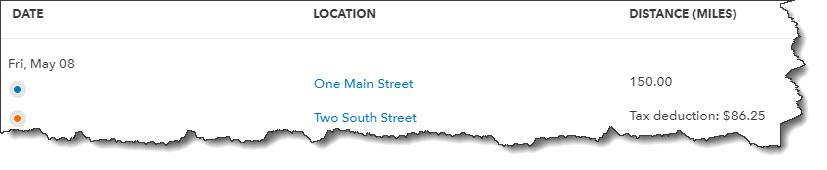
Enter the Date, then the number of miles driven (Distance). If you’d like, you can enter the Starting point and Ending point for your records. Click either the Business or Personal icon and enter a Description. Select the correct Vehicle if you use more than one and click Save. Your trip will now appear on the main screen with your tax deduction already calculated, as pictured below. Click the More button at the end of the row (not shown here), and you’ll be able to Edit your trips and Duplicate them.


A picture containing screenshot

Description automatically generated


Once you’ve created a record for a trip in QuickBooks Online, it will be added to the list on the main Mileage screen.


Auto-Track Your Miles


There’s another way to track your trips, one that doesn’t involve writing down your odometer readings or mileage. The QuickBooks Online mobile app will automatically track your miles as you drive.


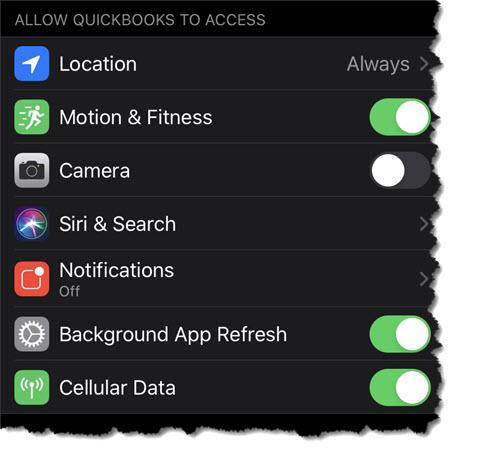
To set this up, open the app and click on the three horizontal lines in the lower right to open the app’s navigation shortcuts. Then click the Mileage icon.  Auto-tracking is off by default, so you’ll have to click OFF to open the Mileage settings screen. Click the Auto-tracking button to change it from grayed-out to green. In the small window that opens, click Settings to go to the QuickBooks section of your phone’s Settings screen and make these changes:


  • Location must be Always On.
  • Motion & Fitness must be On.
  • Background App Refresh must be On.
  • Cellular Data must be On.


A screenshot of a cell phone

Description automatically generated


Before you can automatically track your mileage in QuickBooks Online, you’ll need to change some settings (image above taken in iPhone; Android phones have similar settings).


Close this screen and return to the QuickBooks Online app’s main Mileage screen after you’ve changed your settings. Auto-tracking should be ON. Click the + (plus) sign in the lower right, then Create trip. The app will automatically detect your starting and stopping locations using your phone’s GPS. When you’ve arrived at your destination, open the Mileage app again. 


Swipe left on the trip’s record to categorize it as business and right to mark it personal.  Enter the trip’s purpose if it’s a business trip and click Save. You’ll now need to turn off Auto-tracking and reverse the changes you made in your phone’s Settings (unless, of course, you normally leave any of them on).


A Quick Tip


Do you ever find yourself opening QuickBooks Online in a new tab because you need to check something in another part of the site but don’t want to shut down your current screen?  If you’re accessing QuickBooks Online through Google Chrome, it’s easy. Right-click anywhere in the navigation toolbar that contains links (not the blank space below) and select Open link in new tab. A new tab will open to a QuickBooks Online page. You can do whatever you need to do in the second tab without disturbing your original page.


Stay in Touch


The COVID-19 pandemic has had impact on both large and small businesses all around the world. We hope you’ve stayed physically and financially healthy during this exceptionally difficult time. Don’t hesitate to contact us if we can help with your use of QuickBooks Online and/or your overall accounting.


SOCIAL MEDIA POSTS


As many will resume back to the day to day of business, did you know QuickBooks Online can now help you track your business mileage? It automatically calculates your tax deduction. Find out how here.


Did you know the QuickBooks Online mobile app has a NEW feature? It can automatically track your mileage as you drive. You’ll of course have to change some phone settings first, and we can show you how.


As states and businesses open back up, if you put a lot of tax-deductible miles on your vehicle for work, you’ll want to check out QuickBooks Online’s new Mileage feature. Find out about it and how to set it up here.


Did you know QuickBooks Online allows you to track your vehicle mileage either manually or automatically? This is helpful if you put a lot of tax-deductible miles on your vehicle for work. Ask us about this new feature.

Wednesday, May 20, 2020

Using QuickBooks' Reminders and Calendar

Now, more than ever, you need QuickBooks to track what needs to be done.


COVID-19 has transformed the entire U.S. small business landscape in just a few short months. Companies are struggling to stay afloat. We all just want to get back to “normal,” but it’s unclear when that will happen.


We’d like to help you as much as possible during these uncertain times. One of the ways we can do that is by supporting you as you keep a close watch on your income and expenses. QuickBooks is our go-to tool for that purpose, and we hope you’re making the best possible use of the software right now.


There are steps you can take to ensure that QuickBooks is working quickly and well for you, and that you’re attending to the work you must do every day. The software’s Reminders and Calendar can help you stay current with your accounting.


Setting Up Reminders


You don’t want to let anything slip through the cracks right now. It’s nearly impossible to keep up with your QuickBooks tasks without using the software’s Reminders feature. Before you start using this, you’ll have to set up its structure. Open the Edit menu and select Preferences | Reminders. This window will open:


A screenshot of a cell phone

Description automatically generated
You can tell QuickBooks which situations should trigger Reminders.


This window should open to the My Preferences screen. Click the box in front of Show Reminders List when opening a Company file to create a checkmark. Then click Company Preferences. You’ll see a list of QuickBooks “events,” like Checks to Print. You can tell QuickBooks how many days in advance you’d like to be warned about this pending activity by entering a number in the box in front of days before check date. You can also request that this appear in either Summary or List form. If you don’t want to be notified about any of them, click the button below Don’t Remind Me.  When you’re done here, click OK.


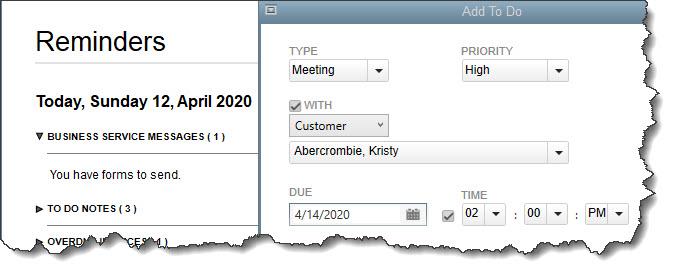
The next time you open QuickBooks, your reminders will appear in a window on top of your home page. When you double-click on one, the transaction or other item will open. Two icons in the upper right of the Reminders screen open your Preferences and a blank To Do form. Here, you can schedule a call, task, appointment, etc. and associate it with a customer, vendor, or employee if desired. This item will then appear in your Reminders list. 


A screenshot of a social media post

Description automatically generated
The Reminders window appears when you open the related Company file; you can add To Do’s manually.


A Graphical View


QuickBooks’ Reminders are not the only way you can ensure that you’re meeting your accounting obligations. You can use the Calendar to see what you’ve scheduled and accomplished every day.


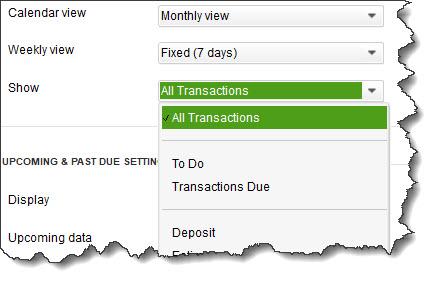
As you did with Reminders, though, you should visit this tool’s Preferences page (Edit | Preferences | Calendar). Here, you’ll only need to work with the options under the My Preferences tab. You can choose from among a Daily, Weekly, or Monthly view, or just have QuickBooks Remember last view. Your calendar can display your choice of a Weekly view: a Fixed view of 5 or 7 days or a Variable view of 5/7 days. And, you can show All Transactions, To Do, Transactions Due, or choose one type of transaction (Invoice, Sales Receipt, Bill, etc.).


A screenshot of a cell phone

Description automatically generated
How would you like your Calendar displayed? QuickBooks lets you choose from among options.


You can also define Upcoming and Past Due Settings. You can Hide or Show these, Show only if data exists, or remember the last settings. QuickBooks allows you to choose the number of days’ worth of data that will be displayed for both Upcoming data and Past due data.


You can open the Calendar itself from the Company menu and by clicking a link in the Toolbar or on the Home Page. You’ll see a graphical calendar in the View you selected. Every day where there’s been—or is scheduled to be—activity will say either Due or Entered, with the corresponding number of transactions in parentheses. Below that is a list of Transactions Entered; you can double-click on any of them to see the actual transaction form. 
A list of upcoming and past due transactions appears in the right vertical pane. Fields and buttons at the top of the screen allow you to change the View and limit the list to a specified type of transaction. You can also add To Do’s from this page.


We hope these tools are helpful for you as you navigate through today’s choppy financial waters. Please do let us know if we can assist you in managing your company’s critical accounting tasks. We want you to keep your business going as best you can until we get to the other side of the ongoing crisis.


SOCIAL MEDIA POSTS


How is COVID-19 affecting your business? QuickBooks have helpful tools to help you navigate choppy waters. Please let us know if we can help.


Keeping track of current and future QuickBooks tasks is difficult without using the software’s Calendar and Reminders. Here’s how you can use them effectively.


When you set up Reminders in QuickBooks, a window displaying them opens every time you open your Company file. This can be a helpful tool to help during COVID-19. Here’s why.

Did you know QuickBooks’ Calendar feature provides a graphical representation of the number of transactions entered and due every day? This can be especially helpful during times like today during COVID-19. Here’s how to use the feature.