Wednesday, September 23, 2020

How to Track Employee Time, Part 2

 If you have to track a lot of employee work hours, you might want to use QuickBooks’ Timesheets. 


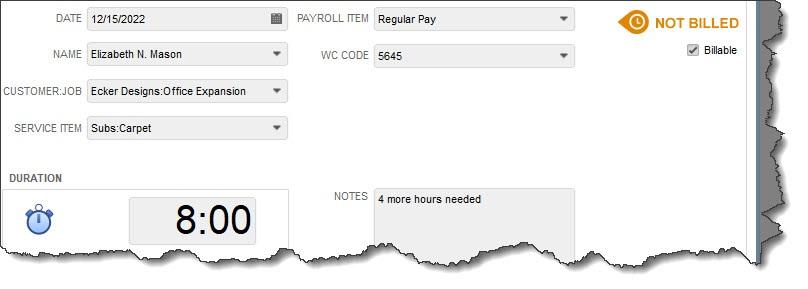
Last month, we introduced the concept of time tracking in QuickBooks. Using the software’s tools, you’re able to record individual blocks of time that employees have worked, so that you are able to include them in payroll and billing customers when necessary. We went through the steps required to set up QuickBooks for time tracking and walked you through the process of creating individual time entries. A completed record for billable time should look something like this:


A picture containing screenshot

Description automatically generated

To enter an individual time record, you open the Employees menu and select Enter Time | Time/Enter Single Activity.


Using a Timesheet


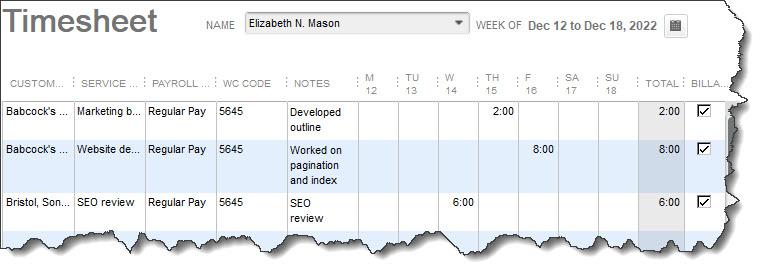
QuickBooks offers another way to enter time records that’s especially useful if you have multiple employees and a lot of work hours to track. Open the Employees menu and select Enter Time | Use Weekly Timesheet. You can also get there by clicking the down arrow next to the Enter Time icon on the home page. This screen resembles a paper timesheet, with columns for all of the information you would enter if you created a single activity.


At the top of the screen, click the down arrow next to Name and select the correct employee. To the right of that is the Week Of field. If you need to change the dates, click the small graphical calendar, then click anywhere in the correct week. If you have already created individual records for that employee during that week, the information for each will appear in the corresponding date column at the end of the row. And anything you enter on the Timesheet will also appear as an individual entry.


To create a new entry on the Timesheet, click the down arrow in the Customer column and select the correct Customer:Job. Next, choose the Service the employee provided by again clicking the down arrow in that field. You want to be sure that the Payroll Item code is the right one, so choose carefully there; the WC Code (Workers’ Comp) should fill in automatically. Enter Notes if you’d like, then the number or hours the employee worked for that customer for that service in the date column. Be sure to click in the Billable box to create a checkmark if the service was billable.


A screenshot of a social media post

Description automatically generated

Any data you enter on a QuickBooks Timesheet will also appear as a Single Activity, and vice versa.


Totals for each column appear at the bottom. Save the Timesheet and repeat the process for any other employees as needed. These hours will now be available to you when you run payroll and bill customers.


Time Reports and Invoicing


QuickBooks makes it easy for you to see the time data you’ve entered. It offers four pre-formatted reports that tally this information in different ways. Open the Reports menu and select Report Center. Locate Jobs, Time & Mileage in the left vertical pane and click on it. Scroll down to the Time heading to see these four reports. They are:

  • Time by Job Summary (tells you how much time your company spent on each job, broken down by services provided)

  • Time by Job Detail (shows you the same thing, but includes employee name and billing status)

  • Time by Name (lists employees and the hours they spent on each job)

  • Time by Item (tells you how much time your company has spent on each service type, broken down by job)

When you open a report, you can double-click on any number in the Duration column to see the underlying detail.


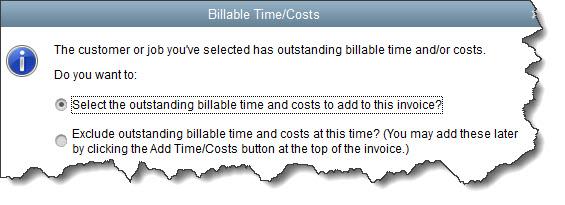
When you create an invoice for a customer who needs to be billed for services provided, QuickBooks displays this message:


A screenshot of a cell phone

Description automatically generated

To make this standard procedure, check the box in front of Save this as a preference.


QuickBooks offers another way to bill for time and expenses that allows you to create invoices in batches. Open the Customers menu and select Invoice for Time & Expenses. In the window that opens, specify your Date Range, and make sure the Template showing is the one you want. 


Click in the column in front of each Customer:Job you want to bill and then click Next Step. You can Review Billables to see details and Edit Options by clicking on those buttons. Click on Create Invoices and make sure each customer’s Preferred Send Method is correct in the next window before dispatching them.


QuickBooks’ time tracking tools may be all your company needs. But if you find them lacking, talk to us about adding TSheets, an integrated solution that adds more advanced features. And let us know if we can help with your use of QuickBooks’ own tools – or any other aspect of your accounting.


SOCIAL MEDIA POSTS


Did you know there are two ways to enter employee work hours in QuickBooks: individual time records or timesheets. Find out the difference here.


Are QuickBooks’ time tracking tools not enough for you? Ask us about adding TSheets, an integrated solution with advanced features.


QuickBooks has a new feature that allows you to invoice for time and expenses in batches. We can show you how this works.


Did you know that QuickBooks can remind you that you have outstanding billable service hours when you invoice customers? Find out how here and ask us how this works.


Wednesday, September 9, 2020

How to Create Product Records in QuickBooks Online, Part 2

 Once you’ve created your company’s product and service records, you’ll use them in numerous places in QuickBooks Online.


Last month, we covered the setup you have to do before you start building your product and service records in QuickBooks Online. We told you to click the gear icon in the upper right, then click Account and settings, then the Sales tab, then Products and Services. Once you’ve specified your preferences, you click the gear icon again, then Products and services, then New to complete the fields required for each record.


Before you start creating product and service records, you should establish your preferences.


You can always view the Products and Services screen by clicking on Sales in the toolbar, then Products and Services. (You can also access it by clicking on the gear icon, then Products and services under Lists.) This comprehensive table, a kind of dashboard for your products and services, displays real-time information about each item’s pricing and inventory levels, as well as its type and tax status. 


Click the down arrow in the Action column, and you can work with that product in a variety of ways. For example, you can run a report, adjust its starting value and quantity, and reorder. You can also edit the record from here. Large, colorful buttons at the top of the screen give you an instant view of the number of items that are low on stock or out of stock. Click on one, and a list of those items will appear.


Warning: Be sure you understand your reason for modifying inventory level numbers (either their starting value or quantity) and the impact this could have on your reporting. We recommend that you consult with us before taking either action. The same goes for reordering if you haven’t worked with purchase orders in QuickBooks Online before.


Using Your Records


Once you start creating transactions like invoices and sales receipts, you’ll see why we recommended that you complete all of the relevant fields in your product and service records. QuickBooks Online is good about allowing you to supply data “on the fly” (as you go along), but your daily work will go much faster if you do your setup work first.


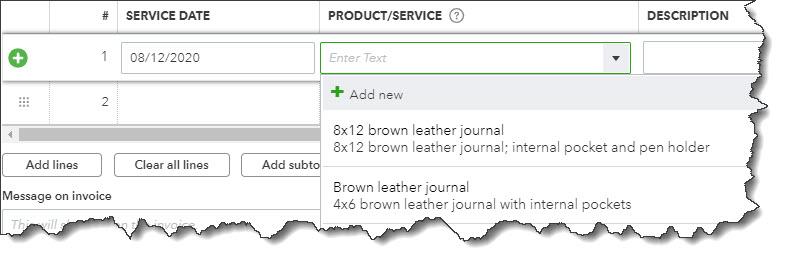
Here’s how you add a product or service to an invoice or a sales receipt, for example. Click on the +New button at the top of the screen and select your transaction type. Choose the appropriate Customer by clicking on the down arrow in the first field in the upper left. Check the rest of the fields in the top half of the form and make any necessary changes. Click in the field under Service Date, then click on the small graphical calendar to select the date of the sale. Click on the down arrow in the field below Product/Service.


A screenshot of a cell phone

Description automatically generated

You can select from product or service records you’ve created or add a new one on the fly.


As you can see in the above image, +New is the first option in the list. Click on it if you haven’t yet created a record for what you’re selling. The Product/Service Information pane will slide out from the right side of the screen. Otherwise, click on the correct product or service in the list. If you filled out all of the relevant fields in its record, QuickBooks Online will complete the rest of the line with the needed information. You only have to enter a quantity in the Qty field. 


Enter any information requested at the bottom of the screen and Save the transaction. QuickBooks Online will reduce the quantity available for any products you just sold. You can see your sale and how it affects inventory by looking at reports. Sales By Product/Service Detail, for example, shows you the sale you just made and any others within the date range you selected.  Product/Service List provides a number for the quantity on hand. Run Inventory Valuation Detail to see a combination of the data in both of those reports. And if your company counts inventory periodically, you can use the Physical Inventory Worksheet, which even displays a number for any items currently on purchase orders.


We hope you’ve been able to continue supplying your customers with the products and services they need during these challenging times. If you maintain thorough product records in QuickBooks Online, you’ll find that your daily sales work can be both fast and accurate. The site can also help you maintain enough inventory that you don’t run short, as well as don’t have too much money tied up in excess products. Please let us know if we can help you with this critical tracking task – or if you have questions about any other element of QuickBooks Online.


SOCIAL MEDIA POSTS


When a customer orders a product, do you know how many you have in stock? QuickBooks Online has great inventory-tracking tools.


How do you know when it’s time to reorder a product? QuickBooks Online can tell you. Ask us about this.


Before you start working with QuickBooks Online’s product tracking tools, click the gear icon and go to Account and Settings | Sales. Here’s how this will help you and why.


Did you know you can create product and service records as you go in QuickBooks Online? But it’s better to set them up first and here is why. We can help you with this.


Wednesday, August 19, 2020

How to Track Employee Time, Part 1

Whether you’re recording employee hours for payroll or customer billing, your entries must be accurate. QuickBooks can help.


It’s easy to track sales of goods in QuickBooks. You create an invoice or a sales receipt, select the product the customer wants along with the quantity, and save the transaction. QuickBooks reduces the corresponding inventory level and records the purchase in the correct account.


Accounting for services sold, however, is a bit more complicated. Whether you’re charging customers for consulting, labor, or any other task that gets billed by the hour, you have to both create records for that billable time and track the hours spent on it carefully. QuickBooks provides tools that simplify both chores.


You’ll use those same tools if you need to record the hours employees work for payroll purposes. QuickBooks allows you to track time in individual records and/or traditional timesheets. Here’s what you need to know.


Editing Preferences


Before you can start tracking time, you’ll need to make sure that QuickBooks is set up for that job. Open the Edit menu and select Preferences, then click on Time & Expenses. With the Company Preferences tab highlighted, click the button in front of Yes under Do you track time? if it’s not already filled in. Click the down arrow in the field next to First Day of Work Week to open the list and choose the correct day. If it’s appropriate, check the box in front of Mark all time entries as billable. Click OK.


A screenshot of a cell phone

Description automatically generated
QuickBooks needs some information from you before you can start tracking time.


While you’re still in the Preferences window, click on Sales & Customers, then My Preferences. When you create an invoice for a customer that has unbilled time, QuickBooks can open a window listing the billable services (Prompt for time/costs to add) or display a small box asking you whether you want to include those items (Ask what to do). Select your preference or Don’t add any, then click OK.


Individual Time Entries


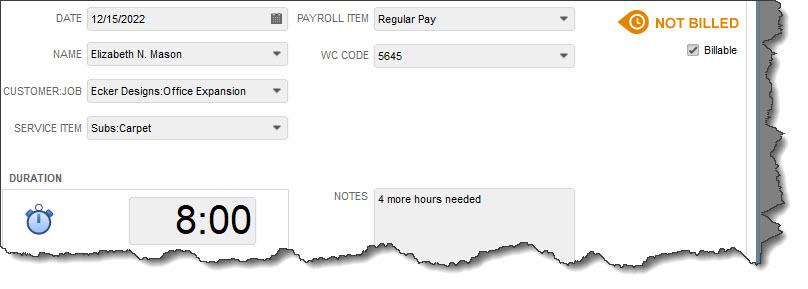
Let’s look first at creating individual time entries. Click the arrow to the right of Enter Time on the home page (or Customers | Enter Time) and select Time/Enter Single Activity. In the window that opens, make sure the Date is set to the date the service was provided (if that is different from the current date that appears). Click the down arrow in the Name field and choose the correct employee, and in the next field, select the Customer:Job. 


Warning: If this work was done for a specific job, be sure to click on the actual job, not the main customer entry. 


A picture containing screenshot

Description automatically generated


The Time/Enter Single Activity window


Next, select the Service Item, the actual work that the employee did. Below that, you can either enter the Duration worked manually, or click Start to launch the automatic timer. If the work is Billable, be sure to check that box in the upper right. Add Notes if you’ d like.


The Payroll Item (pay type) and WC Code (workers’ compensation) fields will only appear if you have QuickBooks set up for payroll. If this is the case, and you don’t see those fields, minimize the Time/Enter Single Activity window by clicking in the small horizontal line in the upper right. Click Employees in the toolbar (or Employees | Employee Center) and double-click on the name of the employee. Click on the Payroll Info tab to the left. You’ll see a line toward the bottom that says Use time data to create paychecks. Check that box and click OK, then reopen the Time/Enter Single Activity window by clicking the double box icon in the lower left of the screen. The two fields should be there.


When you’ve completed all of the fields required, save the time entry.


Note: Are you still doing payroll manually? It’s much easier to track time and pay employees if you’re doing payroll through QuickBooks. But setup can be complex, and we would want to guide you through the process. Let us know if you’re interested.


Creating time entries isn’t difficult, but it can be time-consuming if you have a lot of employees being paid by the hour. So, next month, we’ll look at QuickBooks’ Timesheet feature. We’ll also show you how to get information about the time entries you’ve created and what to do if QuickBooks’ time-tracking isn’t robust enough to meet your needs. In the meantime, be sure to contact us if you need help with QuickBooks or your accounting in general. 


SOCIAL MEDIA POSTS


QuickBooks provides an easy way to track employee time, but it must be set up for this task first. We can show you what’s needed and how.


If you bill customers for services by the hour, you can use QuickBooks’ tools to track it and ensure that it’s invoiced. Let us get you started here.


Are you using QuickBooks for payroll? Your employee time entries must be created and coded correctly. We can help with this.

Are you still tracking employee hours using timecards? QuickBooks offers a better, more accurate and integrated way. Ask us about this and here are a few things to consider.

Wednesday, August 5, 2020

How to Create Product Records in QuickBooks Online

Whether your company sells product or services, QuickBooks Online can help you track them.


If you sell one-of-a-kind products and can see all of them at a glance, tracking your inventory isn’t such a big issue. But not many people run businesses like that. Even if you do, you’d want to keep track of what you have and what you’ve sold for accounting purposes.


Most businesses sell multiple types of products and stock numerous units of them. These companies need to be able to easily add them to invoices and sales receipts. They need to know what’s selling and what’s not, and they need to know when it’s time to reorder.


QuickBooks Online’s recording and tracking tools meet all of these requirements by allowing you to create records for services. Here’s how it works.


Getting Ready


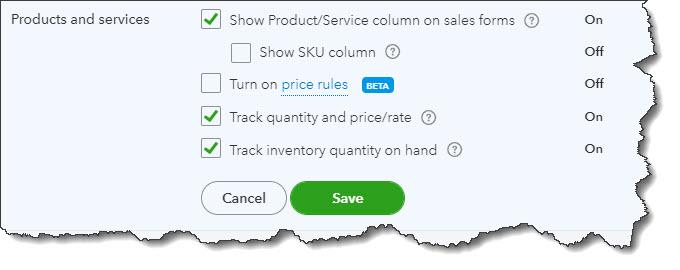
Before you can start working with QuickBooks Online’s product records, you should make sure that the site is set up for this purpose. Click the gear icon in the upper right, then Your Company | Account and settings. Click the Sales tab to get to the Products and services section, as pictured below.


QuickBooks Online’s Account and Settings has a section devoted to Products and services.


Click on Products and services to open your options here. To turn any entry from On to Off, or vice versa, click in the box at the beginning of the line to check or uncheck it. To see an explanation of each, click on the small circled question mark. When you’re done here, click Save. Then click the X in the upper right to close this window.


Creating Records


To start entering product and service data in records, click the gear icon in the upper right, then select Products and services. Since you haven’t entered anything yet, the table will be blank. Eventually, it will contain data for each record you’ve created. You’ll also notice two colored circles at the top of the screen, one marked Low Stock and the other, Out of Stock. When there is a number next to either of them, you’ll be able to click on either circle to see a list of what’s low or what’s out.


Click New in the upper right. A vertical panel will slide out asking what kind of record you want to create. You can choose from:


  • Inventory - Physical items you sell whose quantity you want to track
  • Non-inventory - Products you buy or sell but whose quantities you don’t need to track
  • Service - Services you sell, like legal representation or landscaping
  • Bundle - A group of products and/or services that are sold together, like computer training and accompanying software


We’re going to create an inventory item, so click on Inventory. Type its Name in that field and add a photo if you’d like. If the product has been assigned a SKU, enter that in its field. You may want to divide your products into primary categories and sub-products or services (like Writing Instruments and Pens, Pencils, Markers, etc.). You can skip this option if you don’t.


A picture containing map

Description automatically generated
QuickBooks Online helps prevent product shortages.


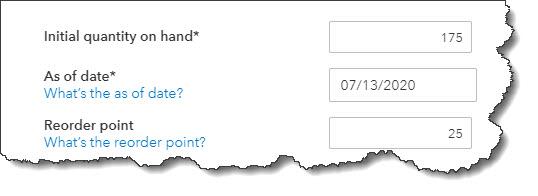
In the next section, you’ll enter the Initial quantity on hand. How many do you have as of (current) date? And where do you want to set your Reorder point? What number of items remaining should trigger the Low Stock alert so you can replenish your supply?


Inventory asset account should already be set at Inventory Asset. Enter a brief Description and then the product’s Sales price/rate (the price you’ll charge customers) and leave Income account set at Sales of Product Income. Then select a Sales tax category. If you haven’t set up sales taxes in QuickBooks Online and believe you’re required to pay them on at least some sales, please let us help. 


In the Purchasing information field, enter the description that should appear on purchase forms, then Cost (the price you paid to buy the product, if any). The Expense account should be Cost of Goods Sold. Select a Preferred Vendor if you’d like and Save the record.


Not all fields are required in your product and service records, but we strongly recommend you complete each record as thoroughly as is possible.


Next month, we’ll look at how product and service records are used in QuickBooks Online. In the meantime, please let us know if there’s any way we can help with your accounting or your use of QuickBooks Online. We know these are challenging times for you, and we hope you’ll use us as one of your resources.


SOCIAL MEDIA POSTS


Before you can start recording sales in QuickBooks Online, you’ll need to create product and/or service records. We can help with this and show you how.


Did you know QuickBooks Online’s settings need to be tweaked before you can use the site properly? Product records is one of these areas, and we show you here.


Did you know QuickBooks Online can warn you when it’s time to reorder products? Let us help you set up this important function.

If you haven’t explored your company’s sales tax requirements, we can show you how QuickBooks Online tracks this necessary information. Read more here to get started.